
Easy Ways to Change Mouse Properties in Windows

Changing Mouse properties Users can easily personalize their mouse experience for efficiency and comfort by changing the mouse’s parameters. Depending on the operating system (macOS or Windows), the procedures differ slightly. The Control Panel or the Settings program (Windows 10/11) is the main way to modify mouse properties in Windows. You can modify the pointer speed, button configuration, scrolling behavior, and appearance of these interfaces.
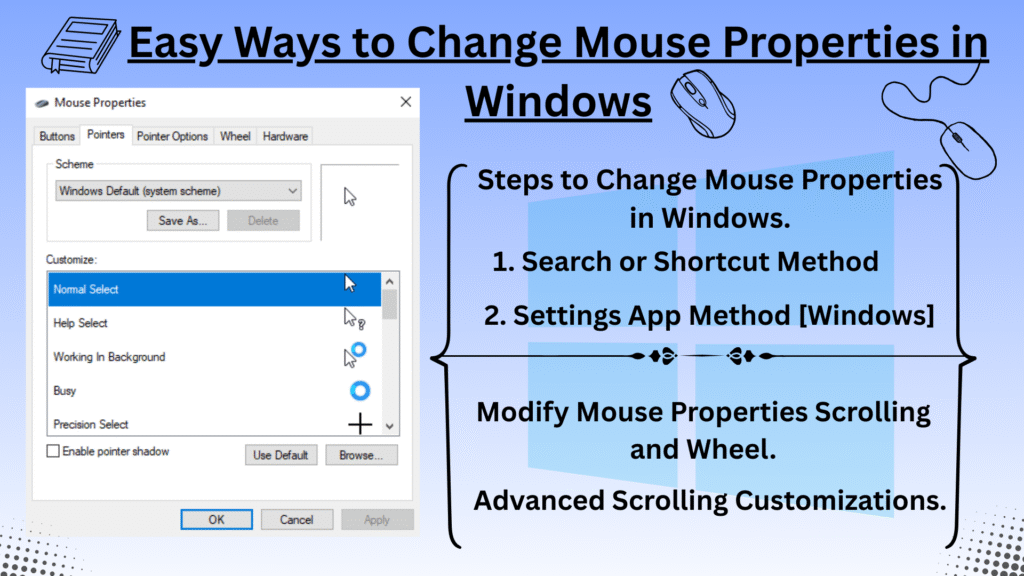
Firstly, open the Control Panel to access your mouse settings. Next, click on Hardware and Sound, and then select Mouse to open the Mouse Properties window. Once done, you can explore various tabs to adjust button configuration, pointer speed, and scrolling behavior.
Steps to Change Mouse Properties in Windows:
1- Search or Shortcut – Method
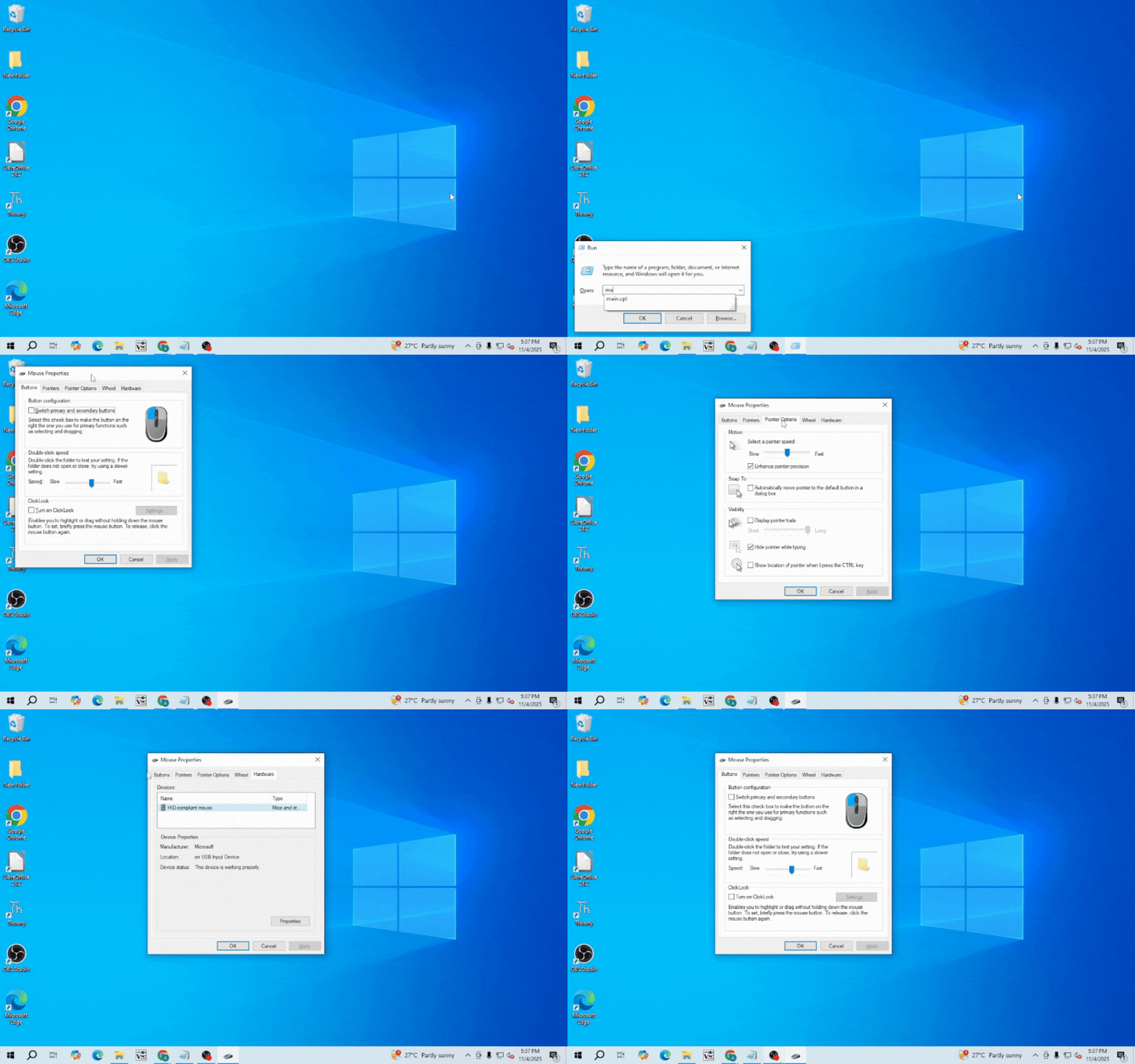
- To open the Run dialogue, press the Windows key + R.
- Type
main.cpland press Enter. - This directly opens the Mouse Properties window, where you can make changes instantly.
2- Settings Application – Method
- Open Settings or Press Keys togethers [
Win + I]. - Go to Devices → Mouse
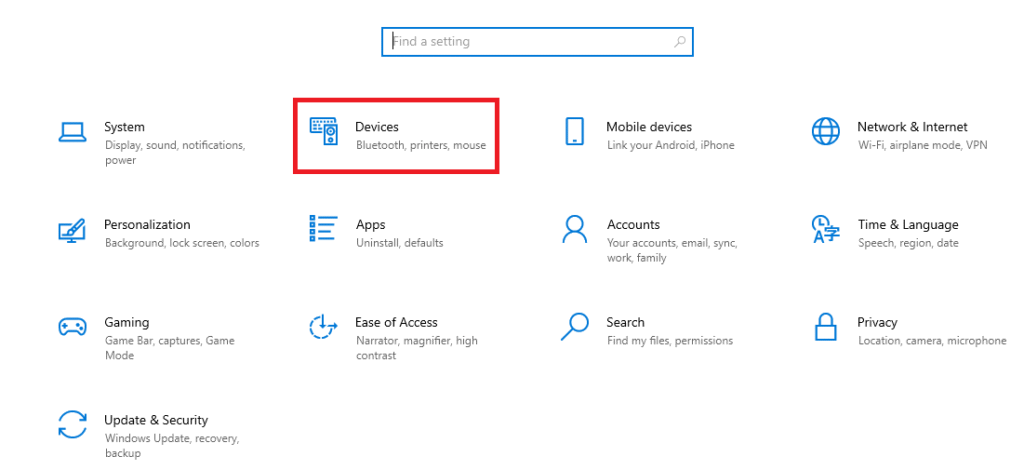
- Here You can adjust your mouse Left and Right Keys.
- Cursor Speed and Scroll Options.
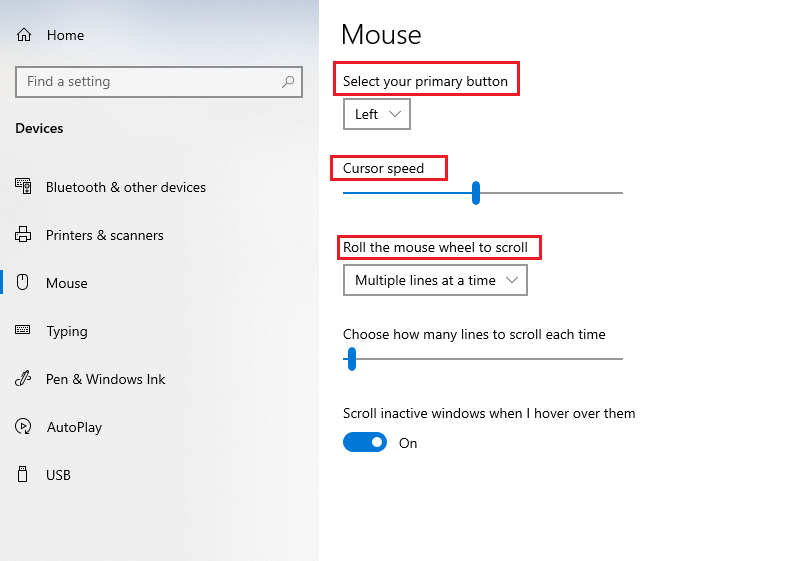
- To access more options, click ‘Additional mouse settings’ on the right.
3.1 – Modify Mouse Properties Scrolling and Wheel – Go to Wheel Tab
- Vertical Scrolling: Choose how many lines to scroll at a time, or scroll one full screen per notch.
- Horizontal Scrolling: Adjust how many characters to scroll horizontally per wheel step.
Also Read : Today’s AI Based Tools and Features
3.2 – Advanced Scrolling Customizations (Optional)
Windows provides additional scrolling options within Mouse Settings, even if the Wheel tab contains fundamental settings:
- Roll the mouse wheel to scroll
- Multiple lines at a time.
- One screen at a time.
- Additionally, you may use a slider to change the number of lines.
- Scroll inactive windows when hovering over them
- When enabled, all it takes to scroll a window is to hover over it; clicking is not necessary.
- For instance, you may just move your pointer over a sidebar that is open in a browser window to scroll it.
- Finally, after making all the necessary changes, click Apply and OK to save your new mouse settings and improve your overall Windows experience.
To further customize your mouse properties, you can utilize the search function or a keyboard shortcut to access the Mouse Settings quickly. Alternatively, the Settings application offers a streamlined method for adjustments. Within the Mouse Settings, navigate to the Wheel tab to modify scrolling and wheel behavior. For users seeking more advanced options, additional scrolling customizations can be accessed to enhance user experience and improve efficiency.



Helpful article with clear steps for Windows users.
This article is very well written and easy to understand. Great job!