How to use Microsoft Outlook Function & Setup

Introduction of Microsoft Outlook
Microsoft Outlook Function & Setup, a robust personal information management tool created by the company, is email sending and receiving. But it provides a lot more than just email services. Outlook is a full-featured productivity application that also offers calendar scheduling, task management, contact storage, note-taking, and journal tracking. It is extensively used to effectively manage everyday activities and communication in both personal and professional contexts. Outlook is offered both as a stand-alone program and as a component of the Microsoft Office suite. How to use Microsoft Outlook –
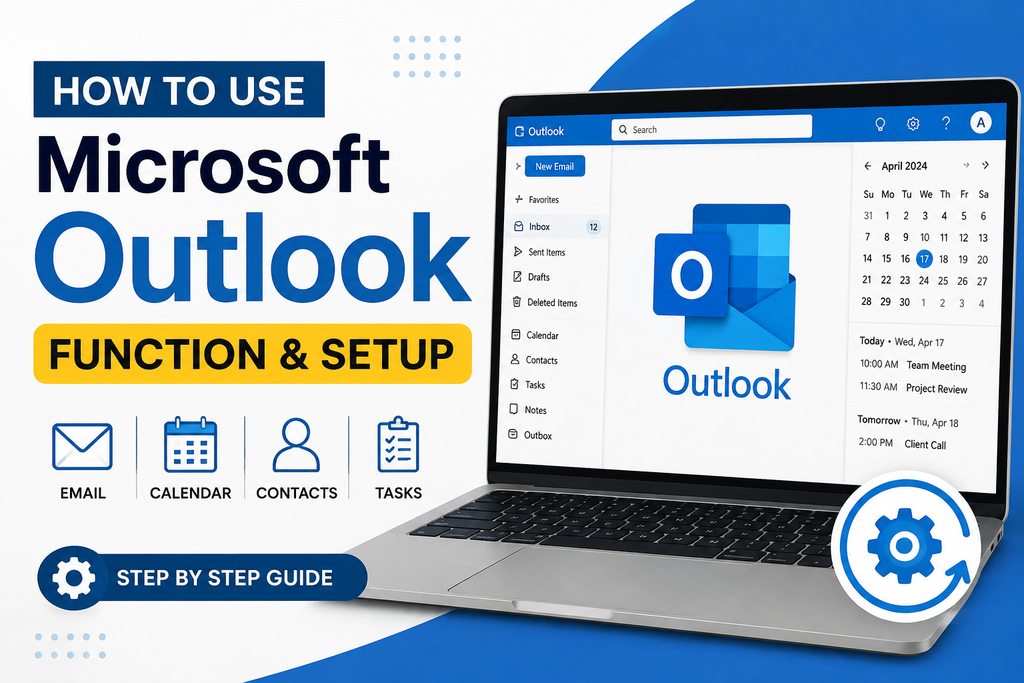
it is comprehensive personal information management system, not just an email client. Outlook helps individuals and teams stay productive and organized with features like task tracking, contact storage, email organization, meeting scheduling, and reminders. It facilitates scheduling and communication at any time and from any location and is compatible with Windows, Mac, web, and mobile devices.
- How to use Microsoft Outlook features
- How to set-up Outlook
- Effective Microsoft Outlook Use
How to use Microsoft Outlook features
1. Email Management
The Email function is one of the main features of Outlook. Users can easily send, receive, reply to, and forward emails. While composing an email, you can add recipients, write a subject, attach files, and use CC or BCC when required. Outlook also provides folders such as Inbox, Sent Items, Drafts, and Deleted Items to help organize emails.
- Effectively send, receive, and arrange emails.
- To automatically sort incoming messages, create folders and rules.
- To prioritize critical emails, utilize “Focused Inbox.”
2. Calendar Scheduling
The Calendar function helps users manage their schedules and appointments. You can create meetings, set reminders, schedule appointments, and invite other people to meetings. This feature is especially useful for managing office meetings, classes, interviews, and important events.
- Plan and coordinate activities, meetings, and appointments.
- Configure alerts and reminders.
- Give team members access to your calendars.
3. Contacts Management
Outlook also provides a Contacts feature that allows users to save important information about people, such as their name, email address, phone number, and organization. Saved contacts make it easier to communicate with clients, colleagues, friends, and other professional connections.
- Save contact information such as emails, phone numbers, and addresses.
- Create groups and distribution lists.
- Sync contacts with other Microsoft tools and mobile devices
4. Task Management
Another useful feature is Tasks, which helps users manage their daily activities and work. You can create tasks, set deadlines, add reminders, and mark completed activities. This helps users stay organized and complete their work on time.
- Create to-do lists and tasks.
- Set deadlines and progress updates.
- Assign tasks to others in a shared workspace
5. Notes and Journals
Notes in Microsoft Outlook help users quickly save and organize important information, ideas, reminders, and short messages. They are useful for keeping small pieces of information that you may need later, such as meeting points, important instructions, phone numbers, or quick ideas. Notes can be created, edited, organized, and accessed whenever required, making them useful for everyday work and personal organization.
- Write and save quick notes for later use.
- Maintain a digital journal for project tracking or ideas.
Also read: What is Microsoft Office?
How to set-up Outlook
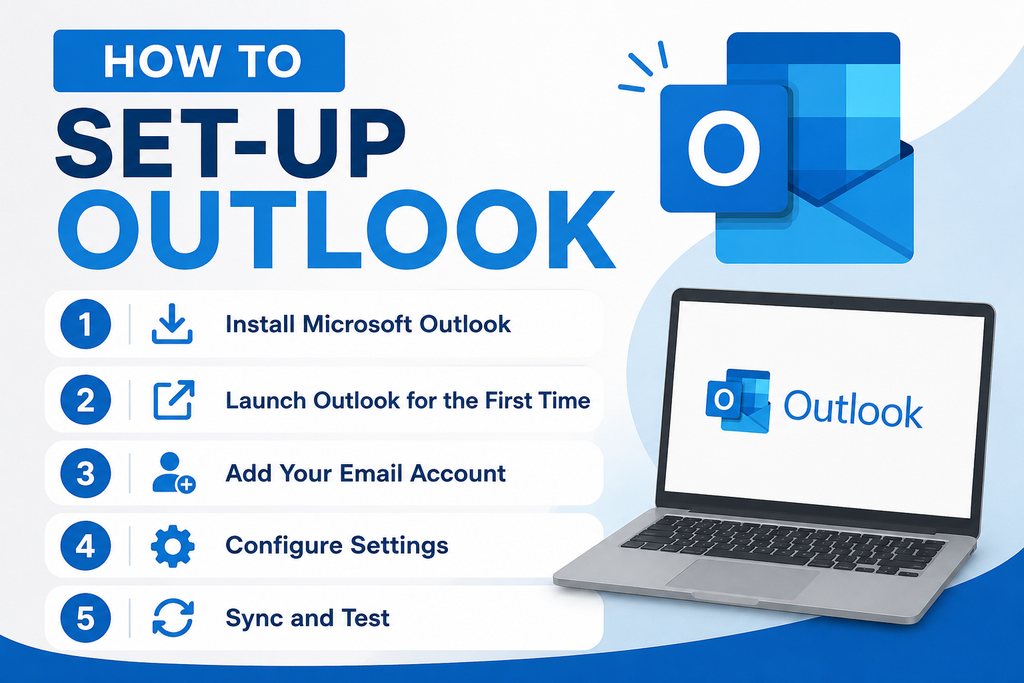
Step 1: Install Microsoft Outlook
- Outlook is available as part of Microsoft 365 or standalone.
- Download it from office.com and install it on your device.
Step 2: Launch Outlook for the First Time
- After installation, open the application.
- You will be prompted to add an email account
Step 3: Add Your Email Account
- Enter your email address (e.g., Gmail, Outlook, Yahoo, or company email).
- Outlook will automatically detect settings for most providers.
- Enter your password and allow access permissions if required
Step 4: Configure Settings
- Go to File > Account Settings to update or add multiple accounts.
- Customize inbox layout, rules, and signatures from Settings > Options.
Step 5: Sync and Test
- Once the setup is done, Outlook will sync emails, calendars, and contacts.
- Send a test email to verify everything is working properly.
Some Advice for Effective Microsoft Outlook Use
Use keyboard shortcuts (e.g., Ctrl + R to respond), use the “Delay Delivery” option to schedule emails for later delivery, integrate Outlook with Teams or OneNote to improve collaboration, and keep organized by using categories and flags.